Requesting a Lesson
Ask for a lesson in any gap in your instructor's diary and follow the request until it is approved.
How requesting a lesson works for both sides
Both phones were recorded at the same moment — the instructor's screen on the left, the student's screen on the right. Use the player controls to pause or replay.
Good to know
- Approved requests appear in your upcoming lessons automatically. In the walkthrough you can see the instructor accept the request and the lesson arrive in the diary.
- Your instructor may offer a different time instead. You will see it in Messages.
- Request well ahead of the day you want. Times that have already passed cannot be requested.
If you need a lesson, you can ask for one from inside the app. Your request goes straight to your instructor, who can approve it or suggest another time.
-
Open Lesson Requests
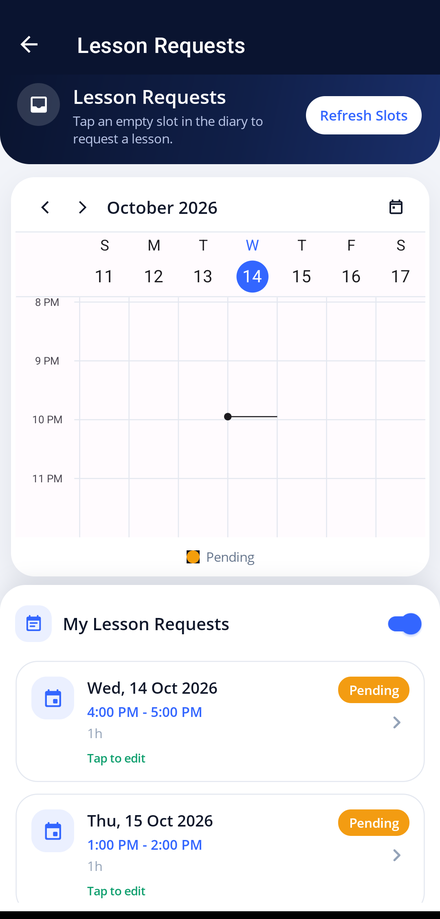
Tap the Lesson Requests tile on your dashboard. The week you are looking at is your instructor's diary, so anything already booked shows in colour.
-
Find a gap
Tap an empty slot on a day and time that suits you. The Lesson Request Details screen opens so you can check the day, the time and how long the lesson will be.
-
Send the request
Tap Send Request. The app confirms that your request has been sent to your instructor.
-
Watch the status
My Lesson Requests lists everything you have asked for. A request shows as Pending until your instructor makes a decision.
-
Change or withdraw a request
Tap Tap to edit on a request to change the time or take it back before it is approved.
-
Refresh when you need to
Tap Refresh Slots to pull the latest version of the diary if it has been a while.