Booking an Available Slot
See the gaps your instructor has published and book one yourself.
How booking an available slot works for both sides
Both phones were recorded at the same moment — the instructor's screen on the left, the student's screen on the right. Use the player controls to pause or replay.
Good to know
- The walkthrough shows both sides at once: the instructor publishes a 2:00 PM slot and, moments later, the lesson lands on their diary as a confirmed booking.
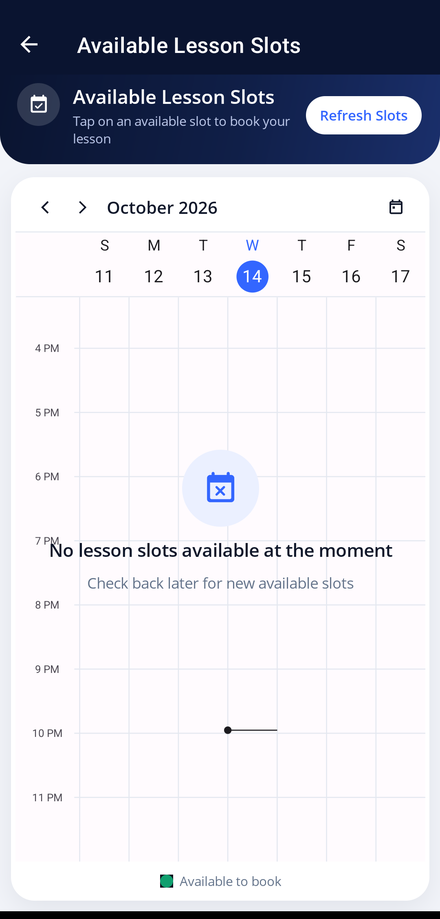
- If nothing is showing, your instructor has not published any availability yet. Check back later, or send a lesson request instead.
- Popular times go quickly, so it is worth checking on the same day each week.
View Available Slots shows the gaps your instructor has opened up. If one suits you, you can book it directly without any back and forth.
-
Open View Available Slots
Tap View Available Slots on your dashboard. This screen shows only the gaps your instructor has released, so everything on it is yours to book.
-
Read the week
The calendar is colour coded and the legend at the bottom explains each colour — your existing lessons, your own requests, and the slots that are available to book.
-
Move between weeks
Use the arrows beside the month to look at the weeks ahead.
-
Book a slot
Tap an available slot, confirm that you want to book it, and the app reports that the slot was booked successfully. The lesson is on your instructor's diary immediately — no request to wait for.
-
Refresh the list
Tap Refresh Slots to check for newly published availability before you book.