Sending Feedback
Tell the team how the app is working for you, in about a minute.
Sending Feedback in the app, step by step
Filmed in the live app, at your own pace. Use the player controls to pause, replay or go full screen.
Good to know
- Saying which screen you were on helps the team reproduce the problem.
- Suggestions are just as welcome as bug reports.
The Feedback screen goes straight to the people who build the app. Whether something is broken or you simply have an idea, this is where to say it.
-
Open Feedback
Tap the Feedback tile on your dashboard.
-
Check your details
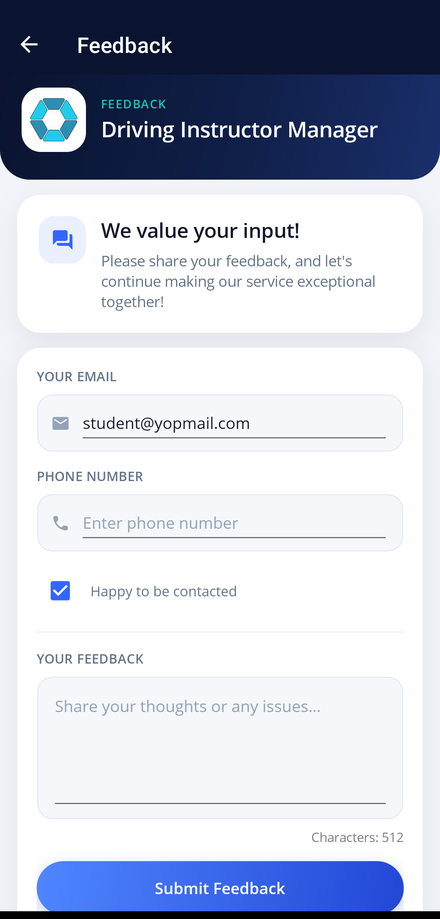
Your email address is filled in from your account. Add a phone number if you would rather be contacted by phone.
-
Decide about contact
Leave Happy to be contacted ticked if the team may follow up, or clear it to send your feedback anonymously.
-
Write your message
Type into Your Feedback and describe what happened or what you would like to see. The counter below the box tracks how much of the 512 characters you have used.
-
Send it
Tap Submit Feedback. A green bar slides in reading We have received your feedback. Thank you! to confirm it has been sent, and the box clears ready for the next message.