Student Records and Notes
One student, one complete record: contact details, progress, notes, mock tests and lessons.
Student Records and Notes in the app, step by step
Filmed in the live app, at your own pace. Use the player controls to pause, replay or go full screen.
Good to know
- Notes are written against your own preset questions, so every student is assessed the same way.
- Progress is calculated from the notes you add, which is why it pays to write them up between lessons rather than at the end of the month.
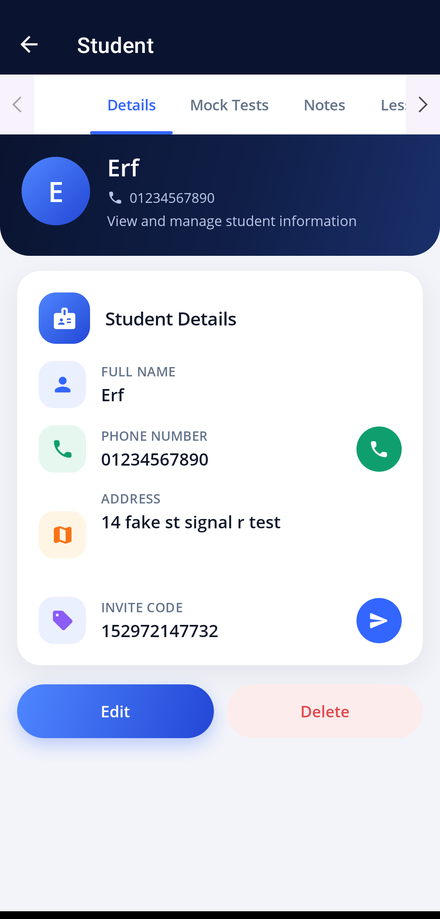
Tapping a student opens their full record. Everything you have ever recorded about that learner is here, on one screen, ready for the next lesson.
-
Open a student
From My Students, tap any student to open their record.
-
Work through the tabs
Details holds their contact information, Mock Tests holds their mock test results, Notes holds your lesson notes, Lessons lists their history, and Progress shows how far through their training they are.
-
Check contact details
The Details tab shows full name, phone number and invite code, with a call button and a send invite button beside them.
-
Keep lesson notes
Add a note after each lesson recording what you covered and what to work on next. Everything you write feeds the student's progress report.
-
Update the record
Tap Edit to change any of the student's details, or Delete to remove them completely.