Settings and Custom Questions
Your account, your custom note questions and your terms, all in one place.
Settings and Custom Questions in the app, step by step
Filmed in the live app, at your own pace. Use the player controls to pause, replay or go full screen.
Good to know
- Custom questions are what make progress reports consistent. Write them once and every lesson is assessed the same way.
- Questions you add appear on every student's Notes tab, so it is worth spending ten minutes getting them right.
Settings is where you shape the app around the way you teach, from the questions you ask after every lesson to how your account behaves.
-
Open Settings
Tap the Settings tile on your dashboard.
-
Manage your note questions
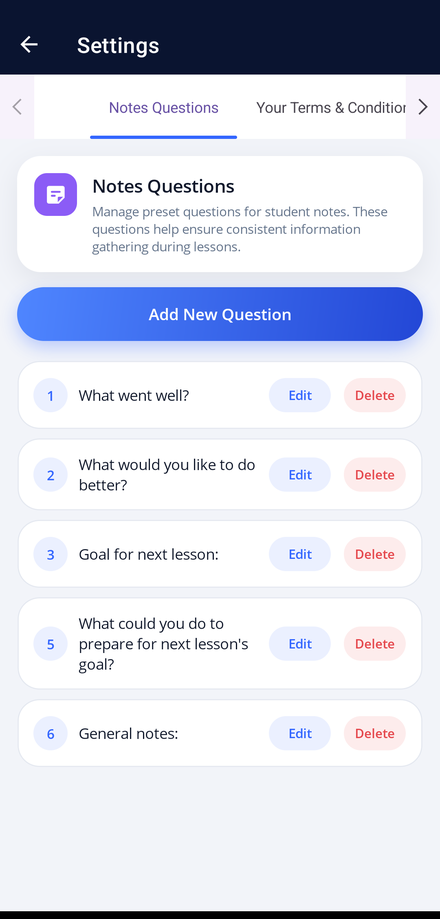
The Notes Questions tab lists the preset questions you use when writing up a lesson. Tap Add New Question to create your own.
-
Edit or remove a question
Use Edit beside a question to reword it, or Delete to take it out of the list.
-
Order your questions
Keep the questions in the order you want to work through them during a lesson.
-
Review your terms
Switch to Your Terms & Conditions to read the terms that apply to your account.