Lesson Requests
Review the gaps your students have asked for and accept or reject them in one tap.
How lesson requests works for both sides
Both phones were recorded at the same moment — the instructor's screen on the left, the student's screen on the right. Use the player controls to pause or replay.
Good to know
- Requests are pushed to your phone as notifications too, so you can approve one without opening the app.
- Use the control beside Pending Lesson Requests to collapse or expand the list.
Students using the free student app can ask for a lesson in any gap in your diary. Lesson Requests gathers those asks in one place so you can approve the ones that suit you.
-
Open Lesson Requests
Tap the Lesson Requests tile on your dashboard. The badge on the tile shows how many requests are waiting.
-
See them against your diary
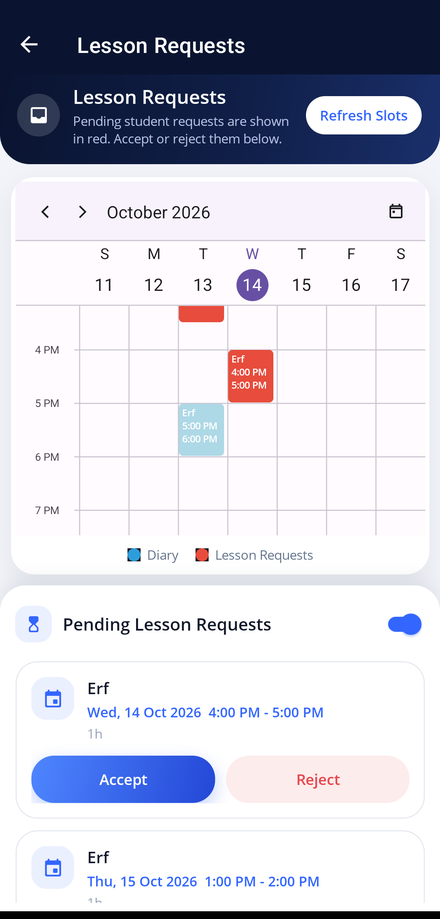
The weekly calendar at the top places each pending request in red against your existing lessons, so you can judge it in context.
-
Check the details
Every request card shows the student, the date and time, and how long the lesson needs to be.
-
Accept or reject
Tap Accept to turn the request into a booked lesson, or Reject to decline it. The student is told either way.
-
Refresh the list
Tap Refresh Slots at any time to pull in the newest requests.