Diary and Scheduling
Your full teaching week at a glance, with week and list views, clash-free booking and repeat lessons.
Diary and Scheduling in the app, step by step
Filmed in the live app, at your own pace. Use the player controls to pause, replay or go full screen.
Good to know
- Lessons you create are written into your phone's own calendar as well, so the app and your device always agree.
- Use the legend at the bottom of the grid to remind yourself which colour is which.
- Log a cancellation from the lesson screen rather than deleting the lesson, so your statistics stay accurate.
The Diary is the heart of the app. It shows your teaching week as a calendar you can move around, with every lesson colour coded, and it checks for clashes before anything is saved.
-
Open the Diary
Tap the Diary tile on your dashboard. The current week opens with today highlighted.
-
Choose your view
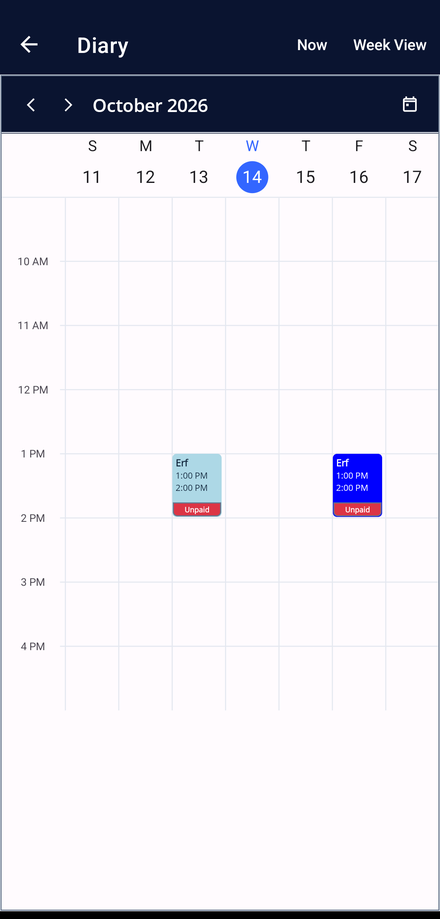
Use the Now and Week View toggle at the top to switch between a focused list of what is coming next and the full weekly grid.
-
Move between weeks
Tap the arrows beside the month to step backwards and forwards a week at a time.
-
Read a lesson
Diary entries are blue and lesson requests from students are red, so you can tell them apart instantly. Tap any block for its details.
-
Book a lesson
Tap the + button to open Create Lesson, choose the student, date and time, and save. The app refuses to save a lesson that overlaps one you already have.
-
Set up a repeat series
Choose the repeat option in Create Lesson to book weekly or fortnightly lessons in one action. Every date in the series is checked for clashes before it is saved.