Custom Broadcast Messages
Send one push notification to every student who is connected to your school.
Custom Broadcast Messages in the app, step by step
Filmed in the live app, at your own pace. Use the player controls to pause, replay or go full screen.
Good to know
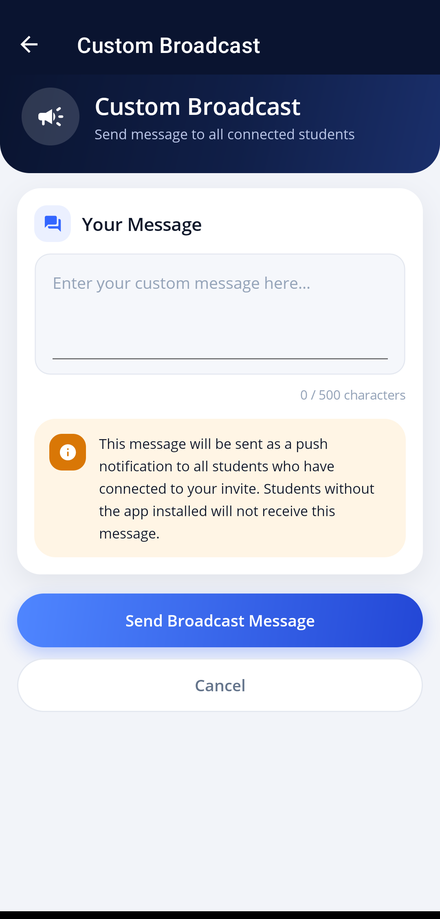
- Students who have not installed the app will not receive a broadcast. Use the invite tools in My Students to connect them first.
- Broadcasts are ideal for weather warnings, holiday closures and timetable changes.
- Keep broadcasts short and specific. They arrive as push notifications, so the first line is the one that gets read.
Custom Broadcast sends a single push notification to every student who has connected to your invite. It is the quickest way to reach all of them at once.
-
Open Custom Broadcast
Tap the Custom Broadcast tile on your dashboard.
-
Write your message
Type into Your Message. The counter underneath shows how many of the 500 characters you have used.
-
Check who will receive it
The note above the send button explains that the message goes to every student connected to your invite, by push notification.
-
Send it
Tap Send Broadcast Message, then confirm with Yes, Send. A Broadcast Sent message tells you how many connected students received it.